
Anonymization under supervision
How to activate anonymisation for each individual service recipient

First Step
When anonymization is activated (in the Admin side), the service recipient will be anonymized when the inspection starts. If the owl does not find a person in the room, the image of the room will pixelate, to ensure anonymity.
Only authorized healthcare personnel can carry out inspections and they will have the option to switch off anonymisation, if necessary.
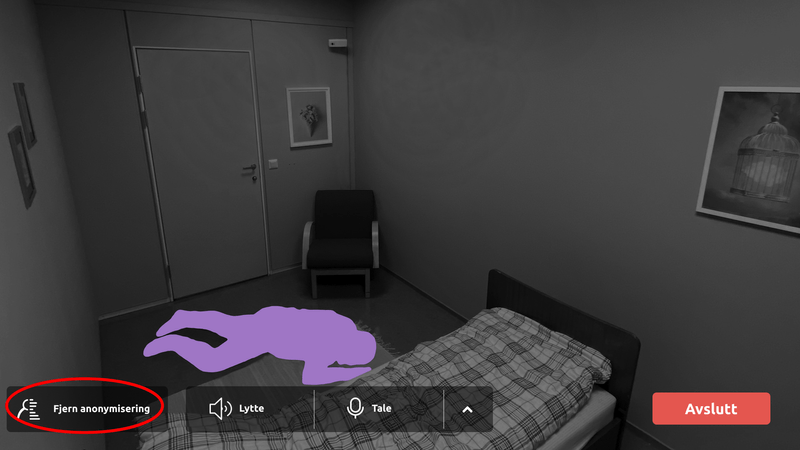
Pixelated image in supervision is like this.

second Step
In a review, click Remove Anonymization in the lower left corner to remove anonymization.
Third Step
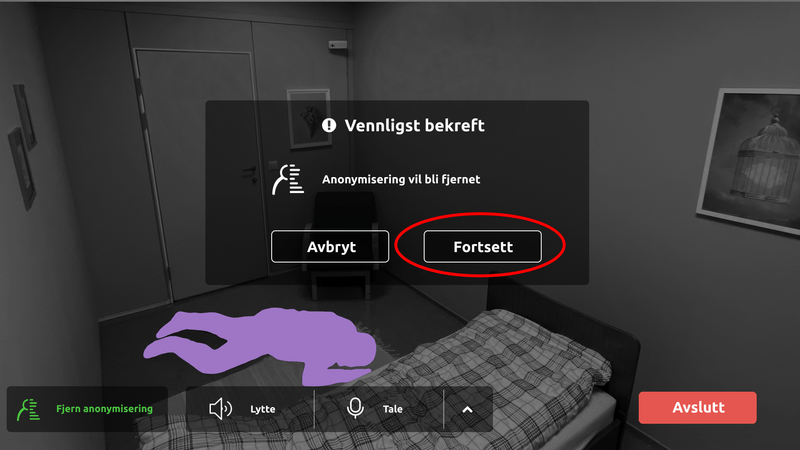
Press Continue to confirm that anonymization is to be removed.
Forth Step
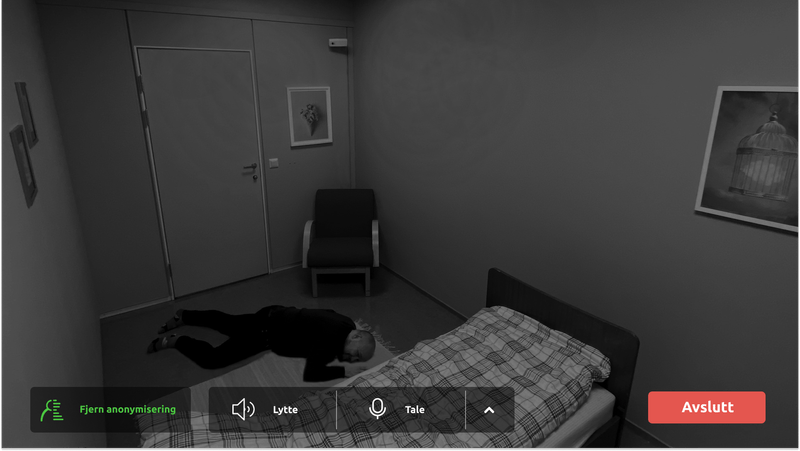
The service recipient is no longer anonymised.

We are here for you
If you can't find the answer to your question, don't worry – we're here to help.
Hepro : + 47 400 04 443
Easymeeting : +47 400 04 887