
Furniture scanning
Furniture scanning is carried out to check what furniture Nattugla has found. You can adjust and add furniture yourself for the best possible accuracy. It is also possible to mark areas to be ignored, eg a TV. The light must be on in the room when you scan furniture. This also applies in order for Nattugla to detect that furniture is moved, automatically.
First Step
AMS is started per service recipient, in order to get as accurate a scan of furniture as possible.
It is important that the light is on in the room.
Log in to Nattugla Admin and click on
service recipient.
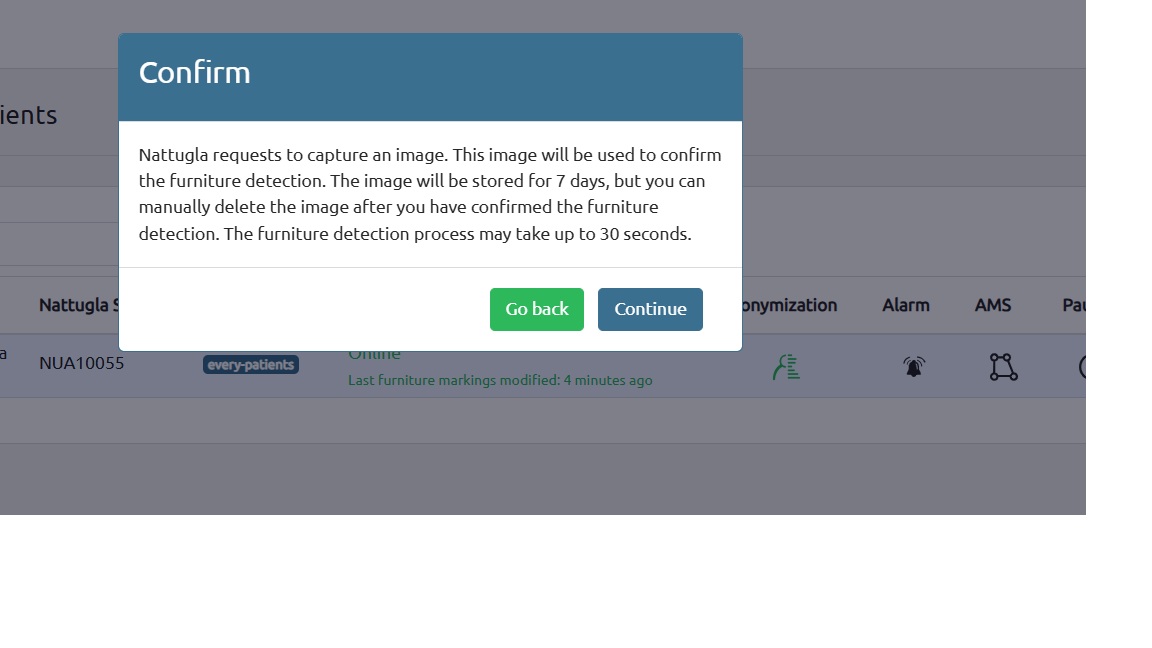
Click on the symbol to start scanning – you will get a warning
that the image will be saved for 7 days, if you choose to save the image.
Second Step
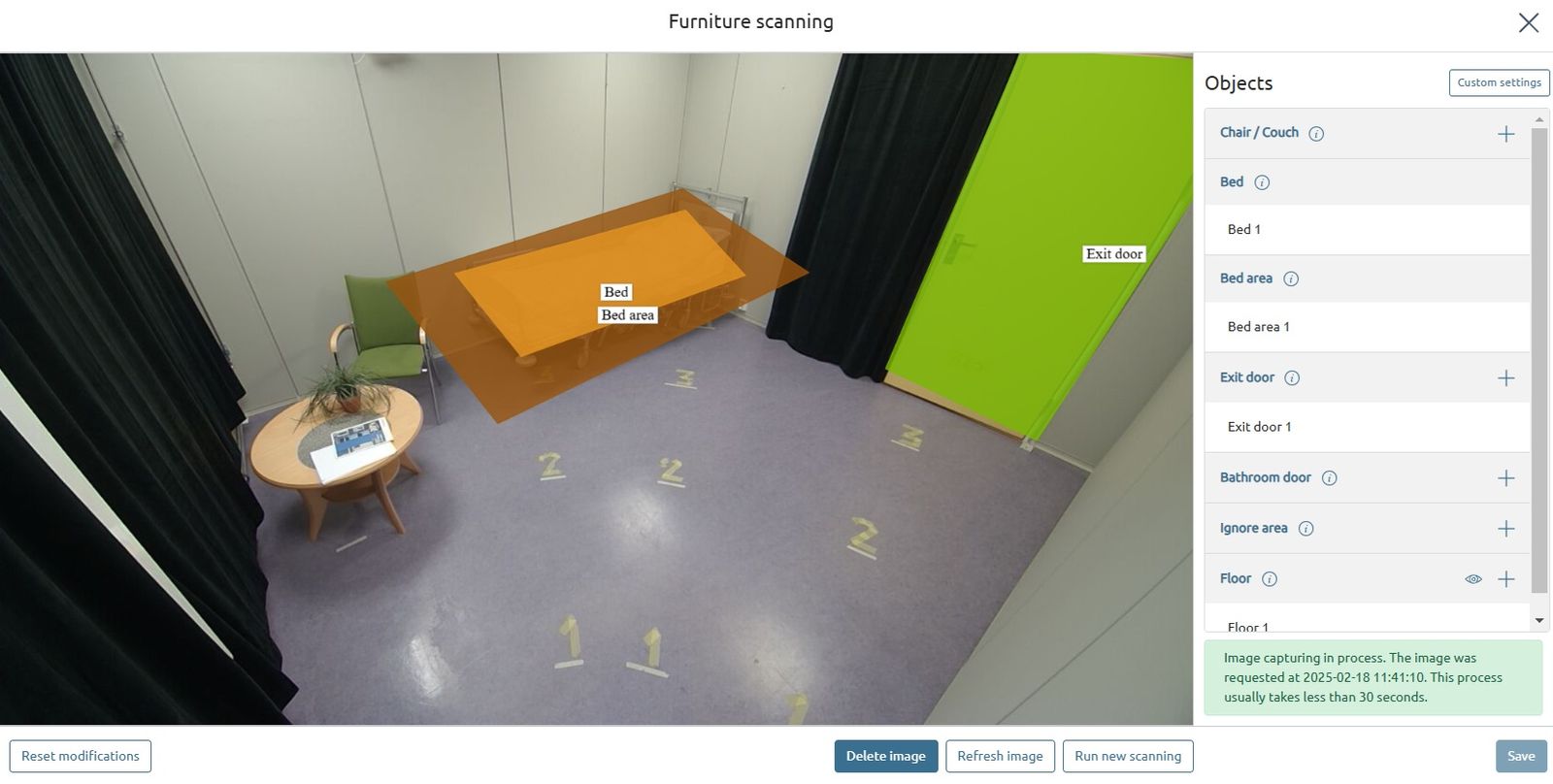
It takes about 30 seconds to scan the room.
You will get the menu on your right handside and can start to add or remove furniture.
Third Step
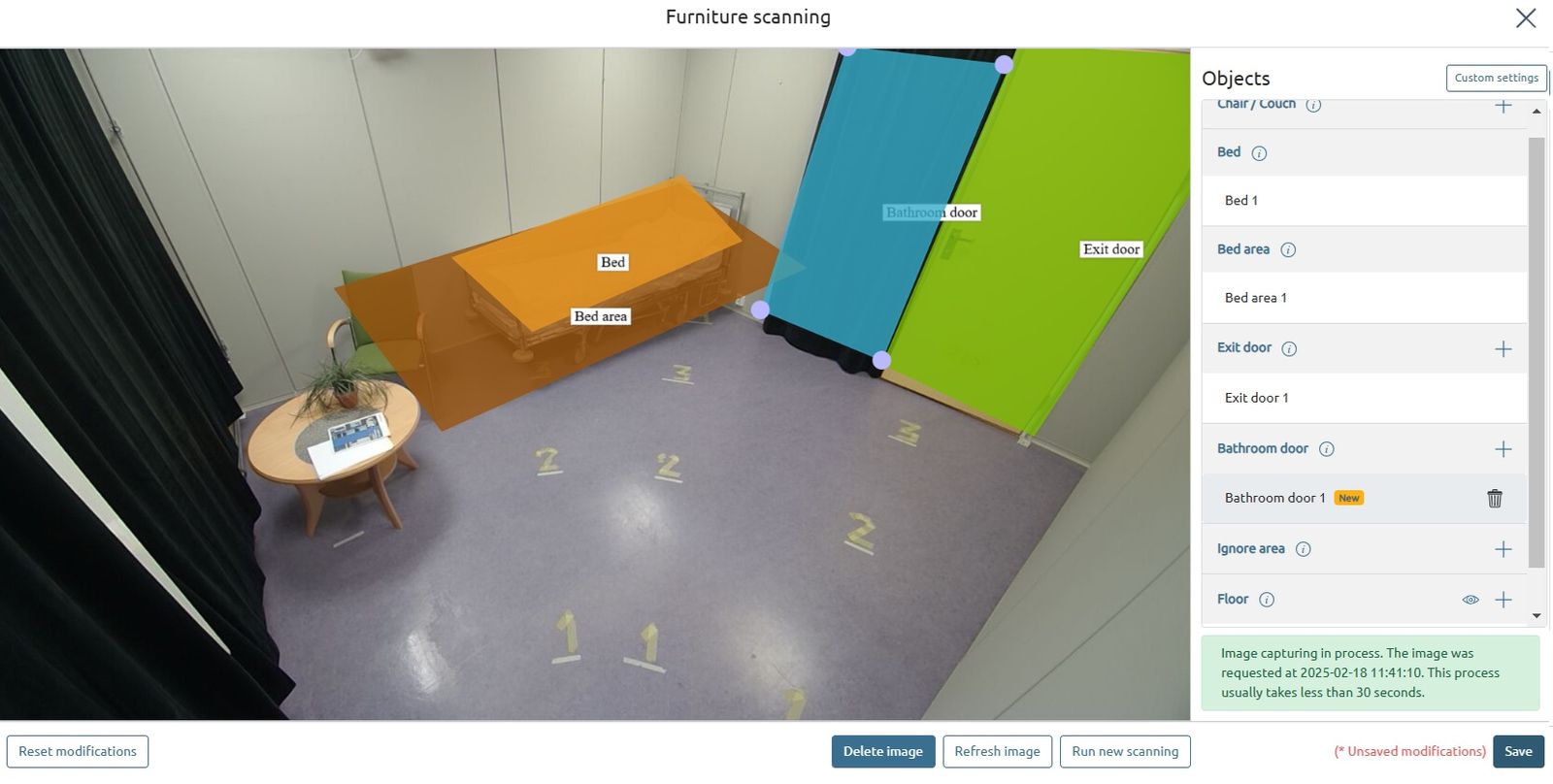
When you have finished adding and adjusting, you can save.
If you want to delete picture, you can do this now and save.
You add “Exit door”, “Bathroom door” and “Ignore area” the first time you scan.
Fourth Step
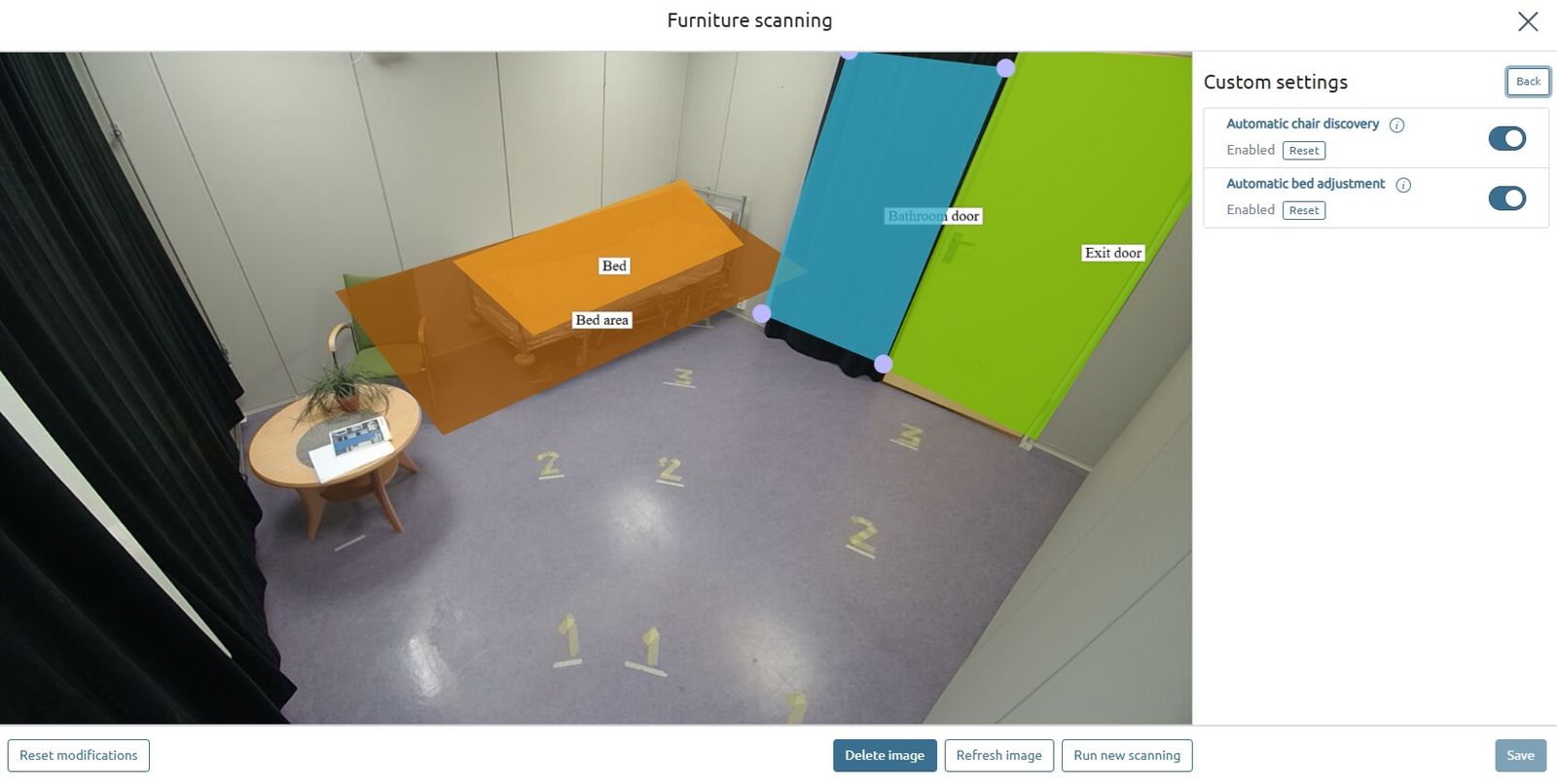
If you click on “CUSTOM SETTINGS” on the top of this window
A new menu will appear.
You can now enable or close automatic bed and chair detection.
Reset – will reset to organisations default settings
We are here for you
If you can't find the answer to your question, don't worry – we're here to help.
Hepro : + 47 400 04 443
Nattugla : +47 400 04 887