
Create groups
First Step
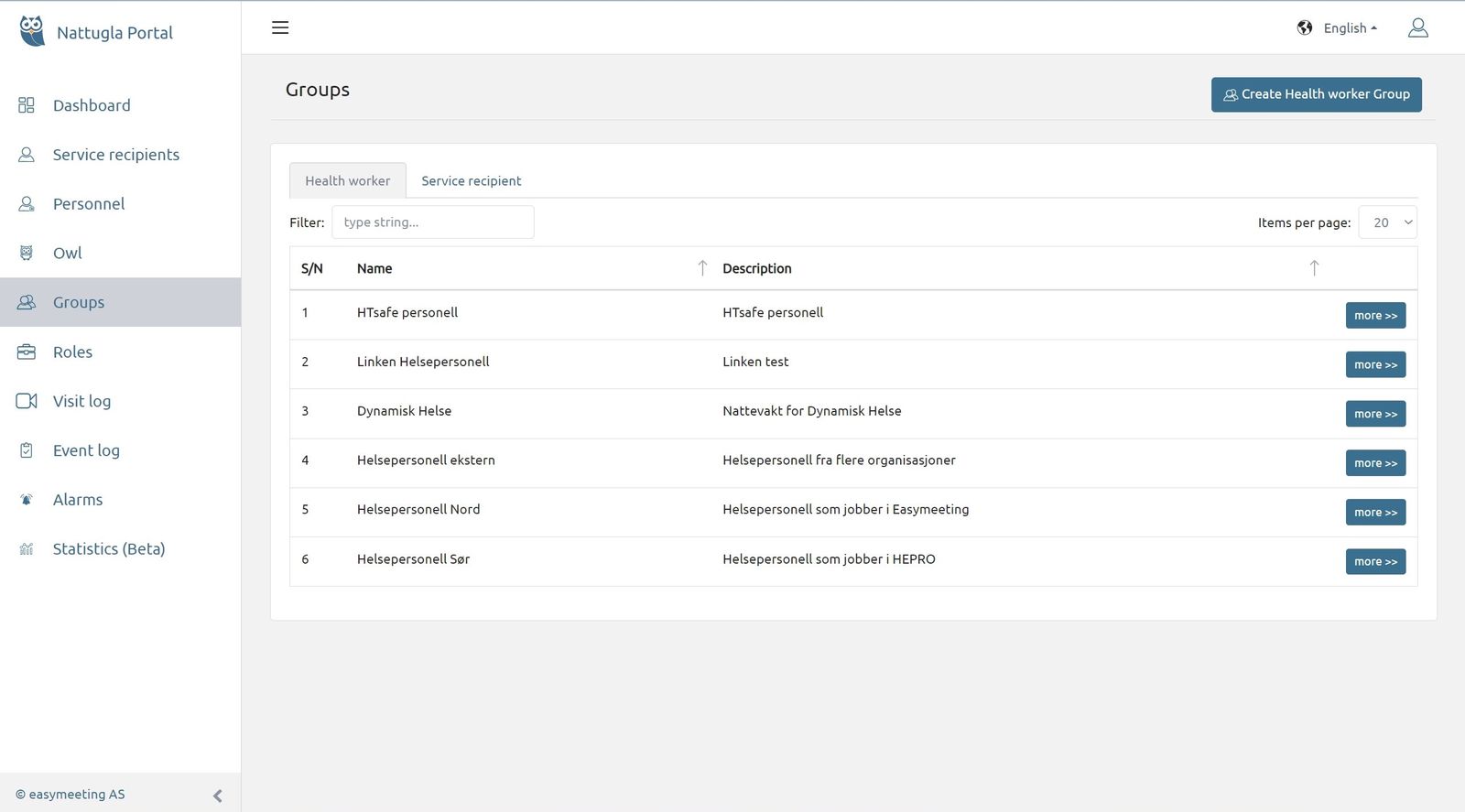
Press Groups in the menu on the left, select the Service Recipients or Health worker tab and then press BLUE button at the top on your right-hand side.
A new window opens and here the name of the Group and group description are entered. The groups cannot have identical names and must have at least 6 characters.
Press Create Group when all the fields have been filled in.
Both Service recipient and Health Personnel must belong to at least one Group.
Second Step
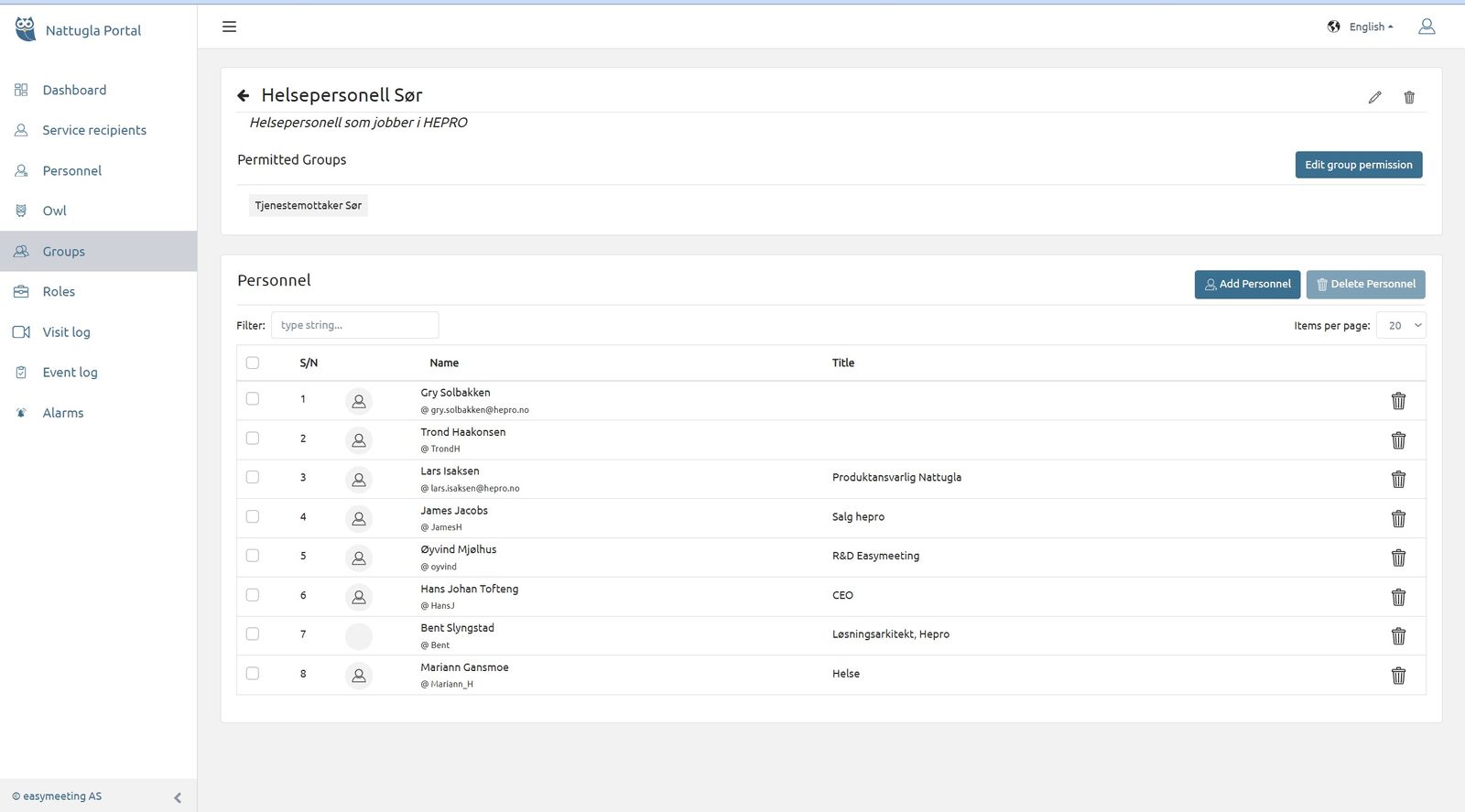
By clicking on MORE , a new window will open, and you can add Service Recipients or Personnel.
Service recipient can be registered in several Service recipient groups, Health personnel group can have access to several Service recipient groups.
Third Step
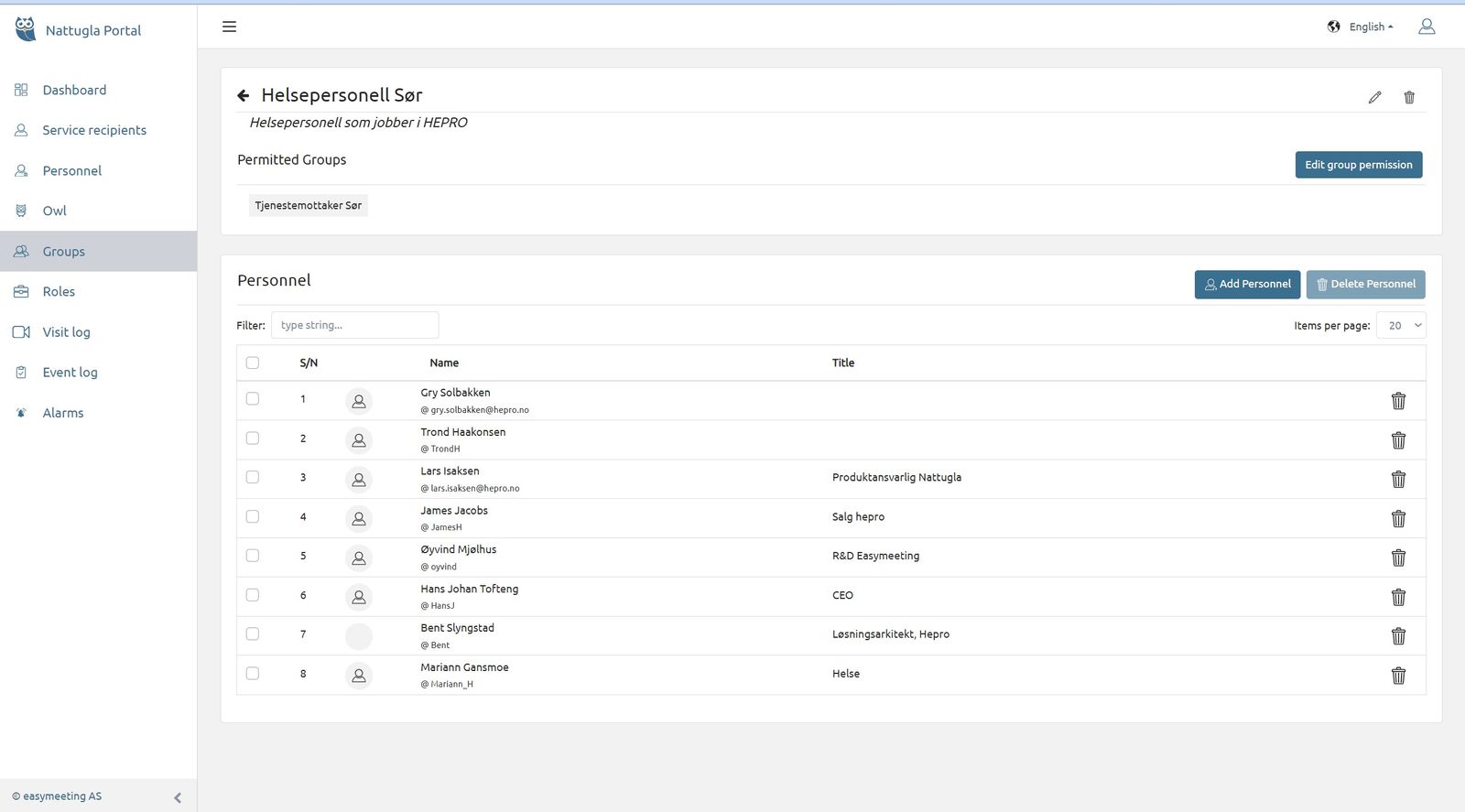
Click Edit Group Permission to add or remove Service Recipient group. Groups that have been selected are shown on the right, groups that can be added are shown on the left. Hover over and click – or + to remove or add Service Recipient Group.
We are here for you
If you can't find the answer to your question, don't worry – we're here to help.
Hepro : + 47 400 04 443
Nattugla : +47 400 04 887