
Activate two-step login
First Step - for Personnel
Log in to xxx.nattugla.no with your user ID and password.
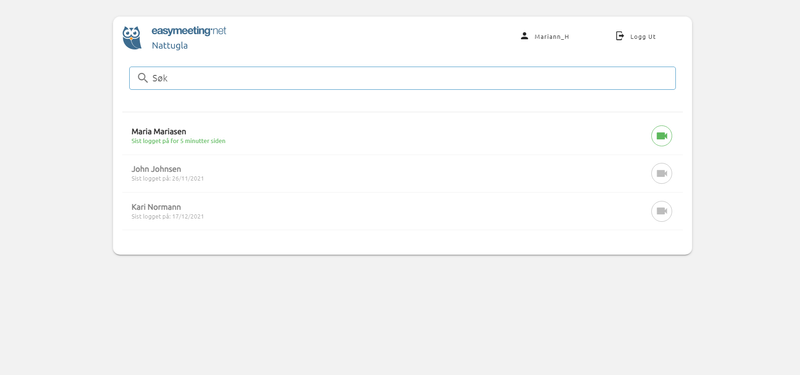
The start page for supervision opens.
Click on PERSON (Your name) to the right of the image.
Click on “Enable MFA”
Second Step
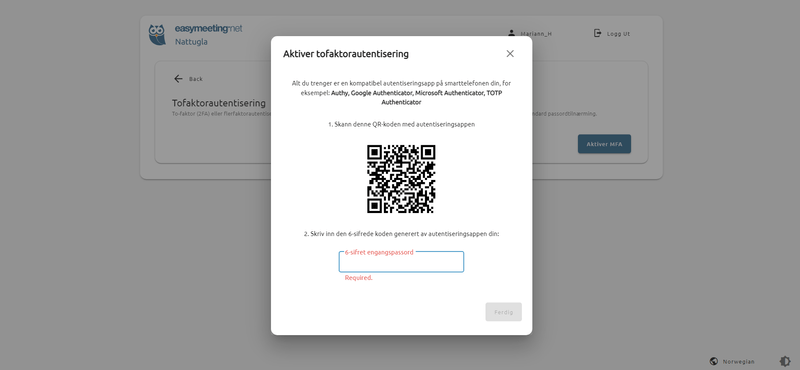
A new window opens.
Use your mobile phone to scan the QR code to create codes for extra security when logging in.
Follow instructions on your phone and enter code from your authenticator and press “Finish”
Third Step
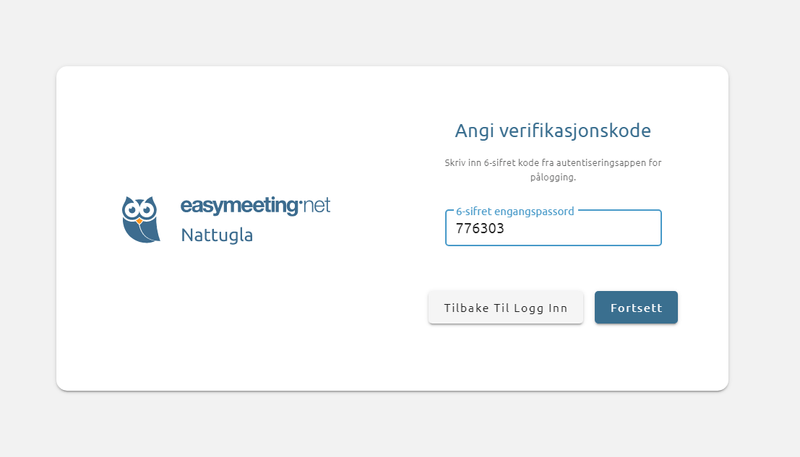
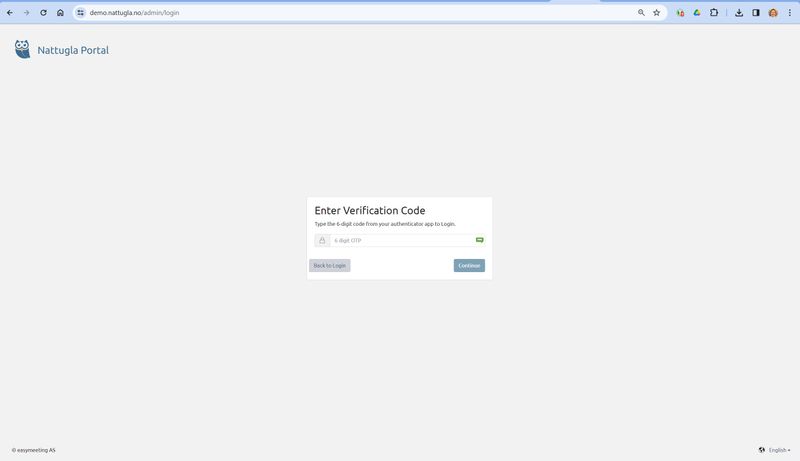
When you log in, after you have entered your username and password, you will be asked for a code.
You can find this on the Authentication app on your mobile.
First Step - for administrators
Log in to xxxx.nattugla.no/admin with your user ID and password.
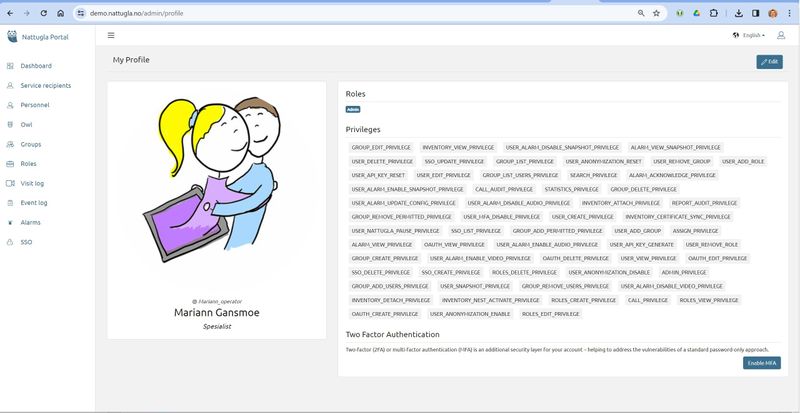
Click on person at the top. The start page for supervision opens.
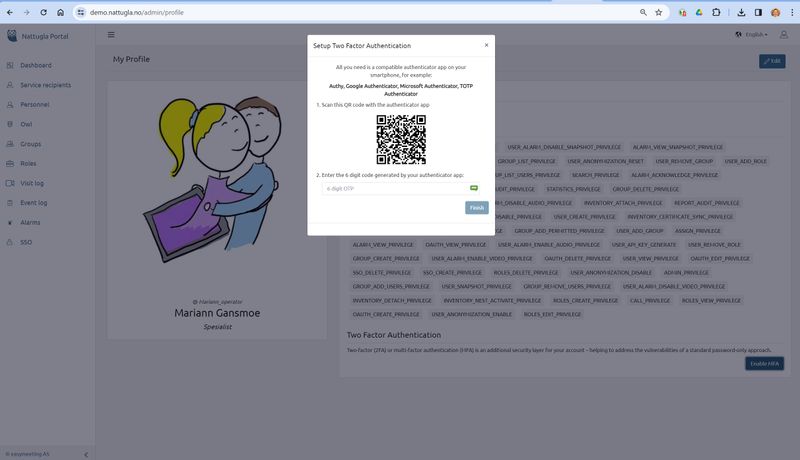
Click on “Enable MFA”
Second Step
A new window opens.
Use your phone to scan QR code.
Follow instruction on your phone and enter code from your authenticator. Press “Finish” to activate.
Third Step
When you log in, after you have entered your username and password, you will be asked for a code.
You can find this on the Authentication app on your mobile.
We are here for you
If you can't find the answer to your question, don't worry – we're here to help.
Hepro : + 47 400 04 443
Nattugla : +47 400 04 887