
Activate alarm
First Step
The administrator activates the alarms they want per service recipient/user. :
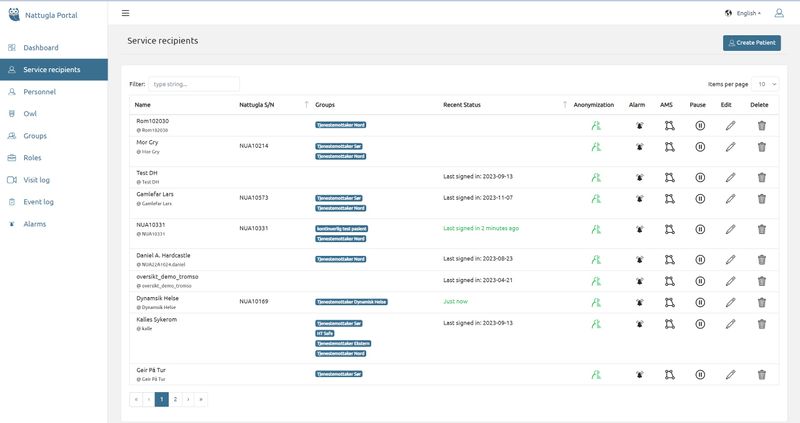
Click on Service recipient in the menu on the left. Then search for the service receiver on which you want to activate alarms and press the Alarm symbol. It is possible to activate alarms per Nattugla. Loud sound alarm requires an audio unit. Exit room and too long in bathroom alarms require that Nattugla can see the doors.
Second Step
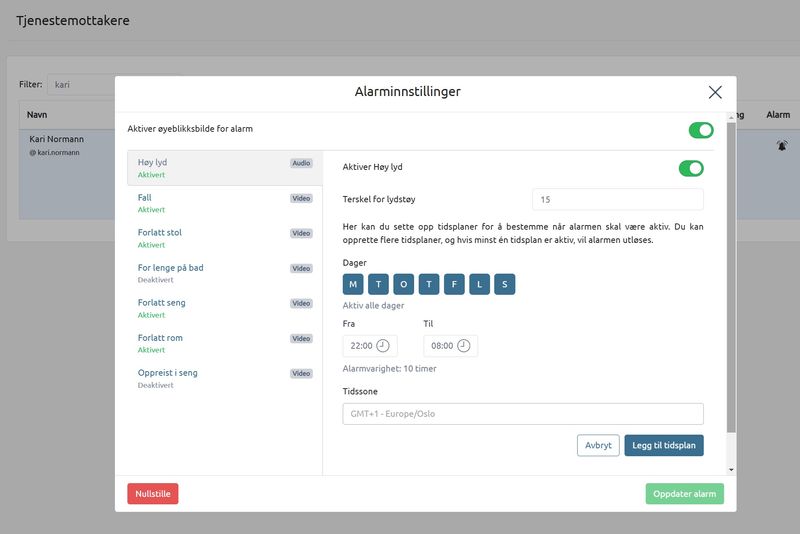
A new window opens with choices for the various alarms. Tap on the alarms you want to activate and choose to activate.
Choose time you want alarms to be active
– finish with UPDATE ALARM
NOTE – Nattugla needs to have software 8.4.5 or higher
Third Step
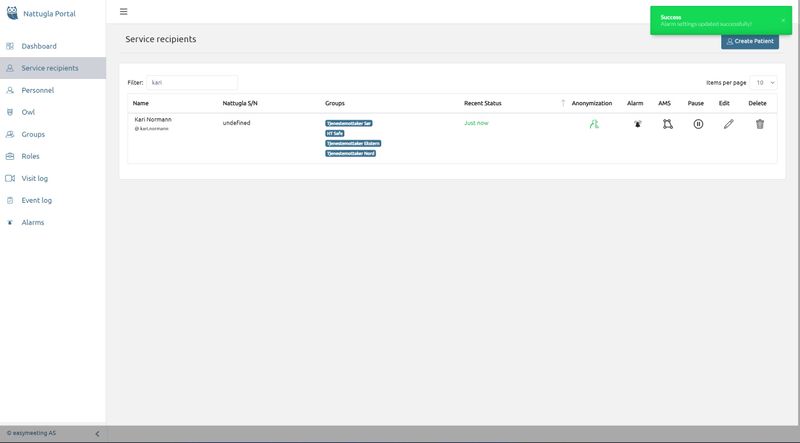
You will receive a confirmation that your selections have been saved in the right corner.
Fourth Step
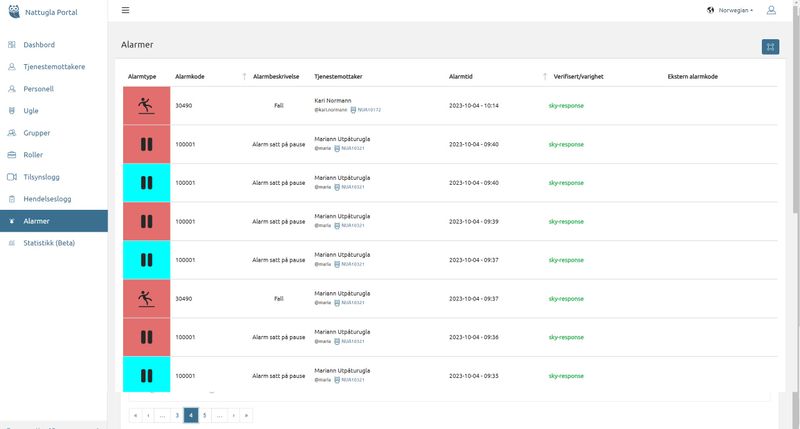
Press Alarms in the menu on the left to see triggered alarms.
Note, there will be no alarms if there is a supervision in progress. When checking whether the alarms are working, Nattugla must be switched on and not under supervision.

We are here for you
If you can't find the answer to your question, don't worry – we're here to help.
Hepro : + 47 400 04 443
Easymeeting : +47 400 04 887